You can create a Basic Page to showcase different types of content such as Research, Teaching, or Publications.
In this example, we’ll demonstrate how to create a Publications page and organize entries by year.
Steps to Add a New Publications Page
- Log in using your UTORid.
-
From the admin menu on the left side, go to:
Create → Basic Page -
Enter a Title:
Example:Publications -
In the Body field:
-
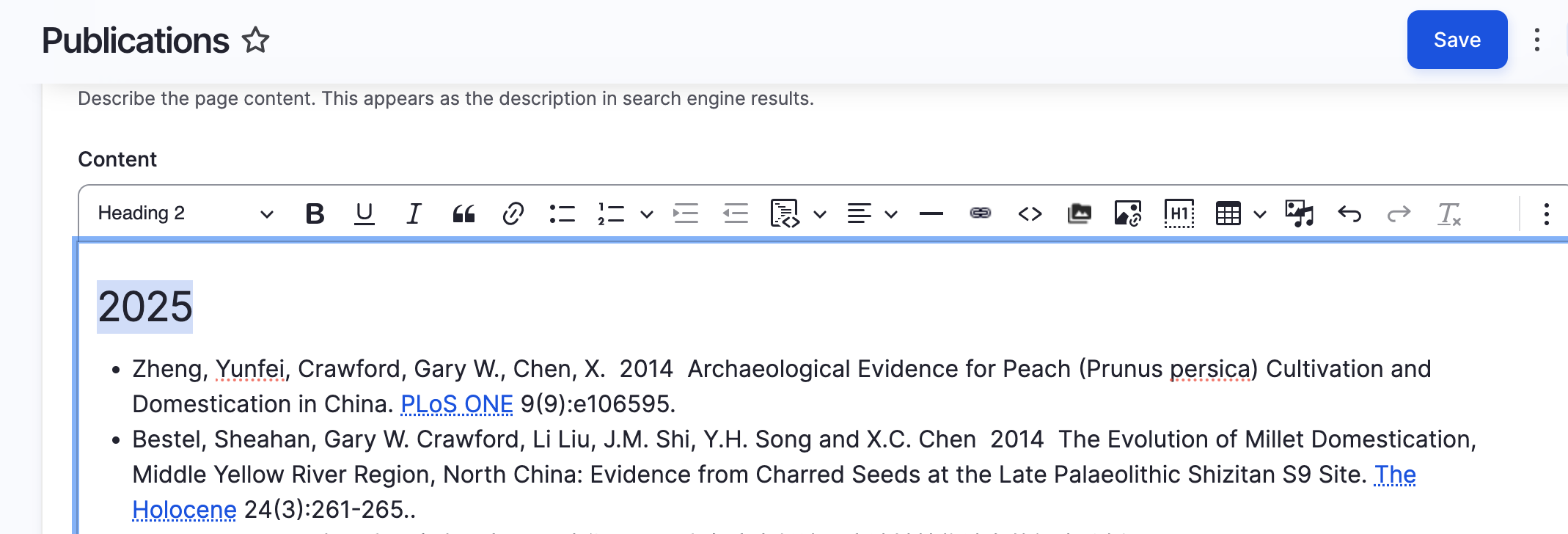
Add a paragraph heading and change heading style to H2 (e.g.,
2025) -
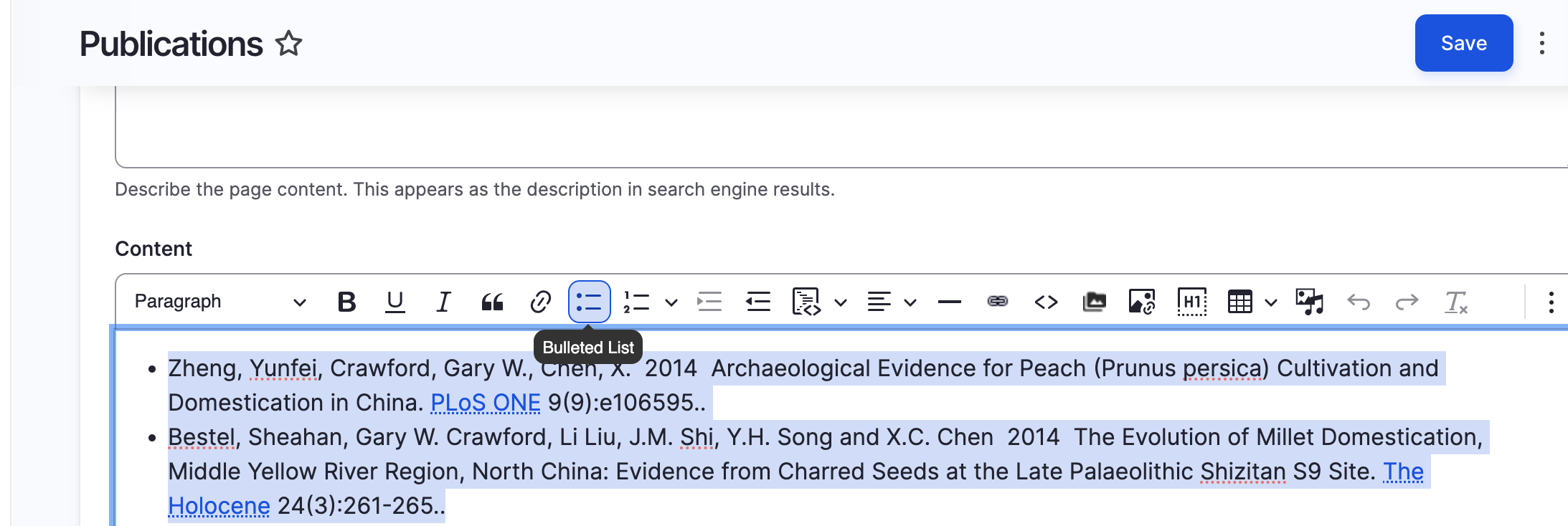
Use a bullet list format for each publication entry
(Include links to PDFs where available) -
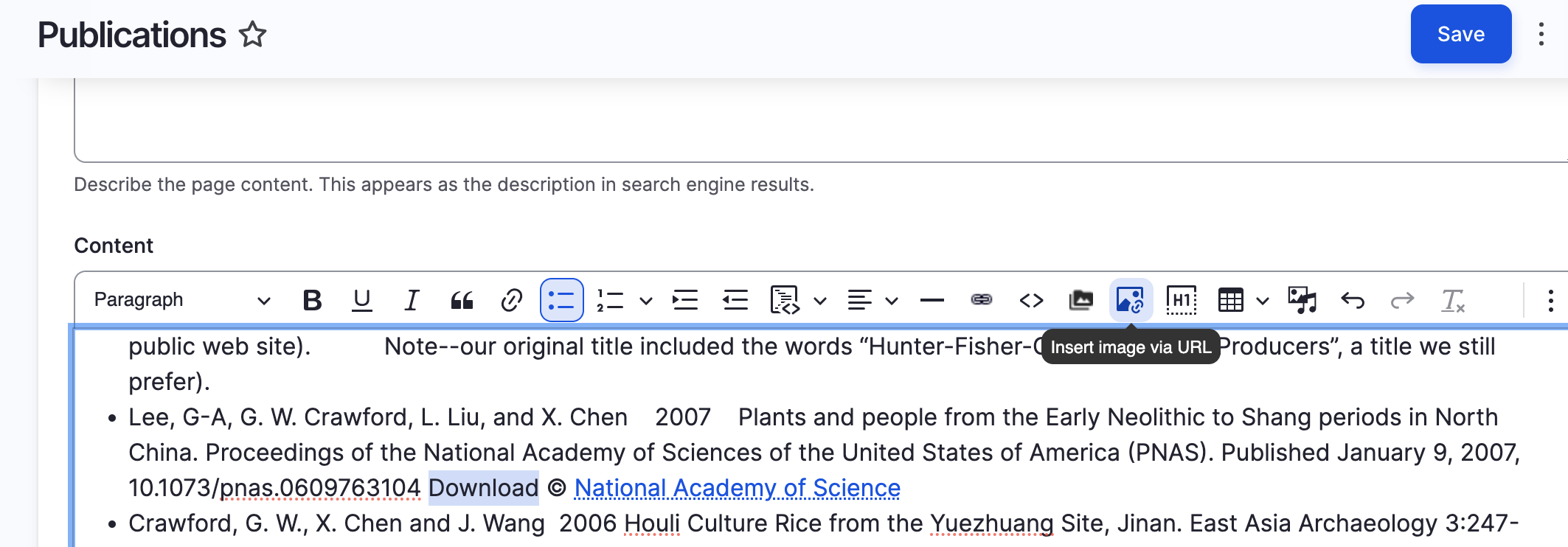
Add a horizontal line (HR) between each year to separate content clearly
(You can use the "Insert Horizontal Line" button in the editor toolbar)
-
Add a paragraph heading and change heading style to H2 (e.g.,
-
URL Alias:
Under URL Alias, you may set a custom path like/my-publication(optional). -
Menu Settings:
- Enable the checkbox “Provide a menu link”
-
Set the Menu Parent to
Main navigation -
Set the Menu Link Title to
Publications
- Click Save to publish your page.
📸 Screenshot: