First ensure that the video content is your own or complies with copyright legislation, respects intellectual property rights, and does not contravene University of Toronto policies.
To add a video to your page:
- Navigate to the page where you want the video to appear.
- Click the Edit tab at the top of the page.
- In the Body text field, place your cursor where you want the video to be embedded.
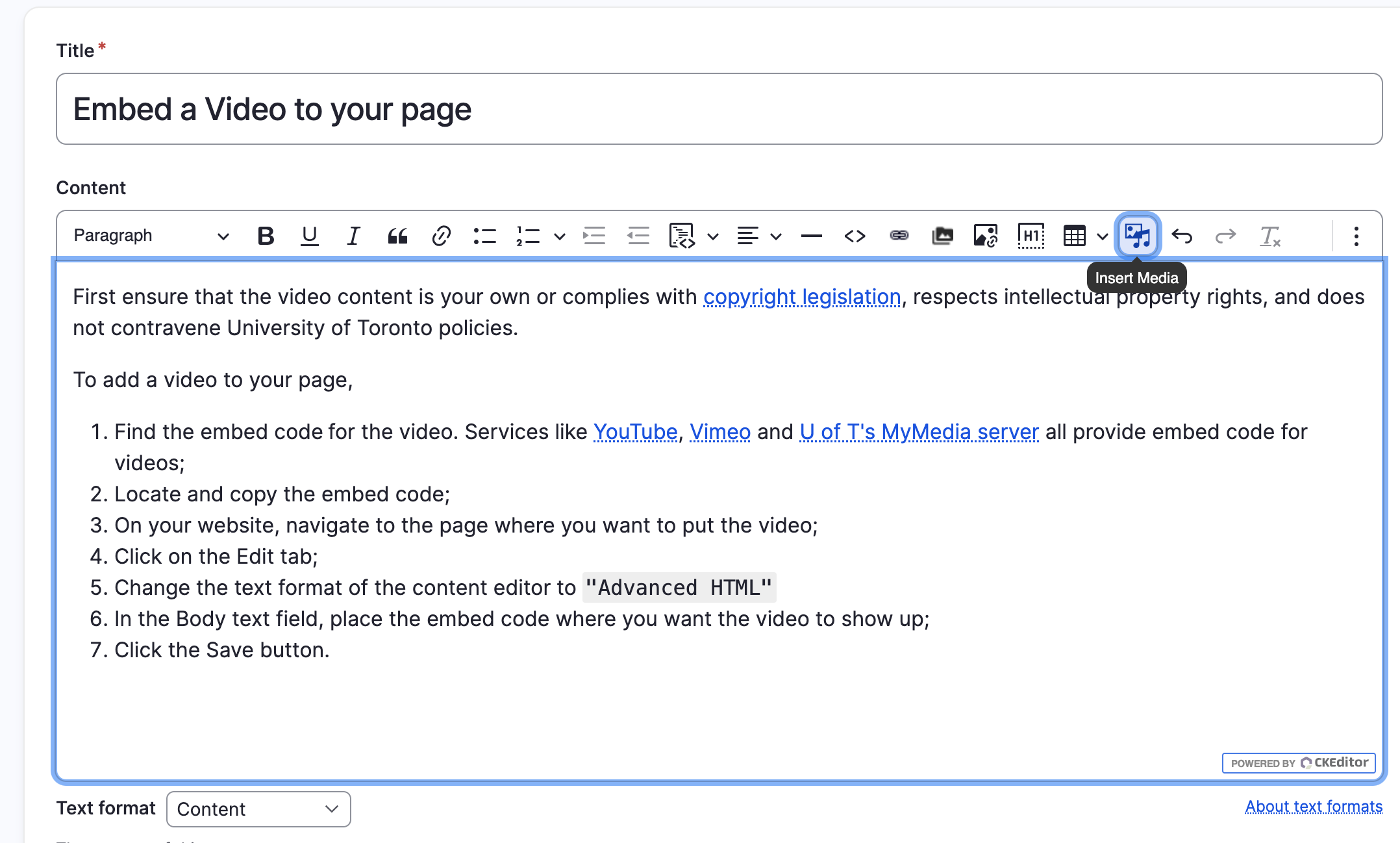
- Click the
Insert Mediaicon in the editor’s toolbar. - Paste the YouTube or Vimeo video URL into the
Remote Videofield. - Click Save to insert the video.
- Finally, click Save at the bottom of the page to publish your changes.
📸 Screenshot:
📸 Sample Video: